How to Merge PDF Files: Complete Guide for 2026
Learn the easiest ways to combine multiple PDF files into one document. Free methods, tips for maintaining quality, and step-by-step instructions.
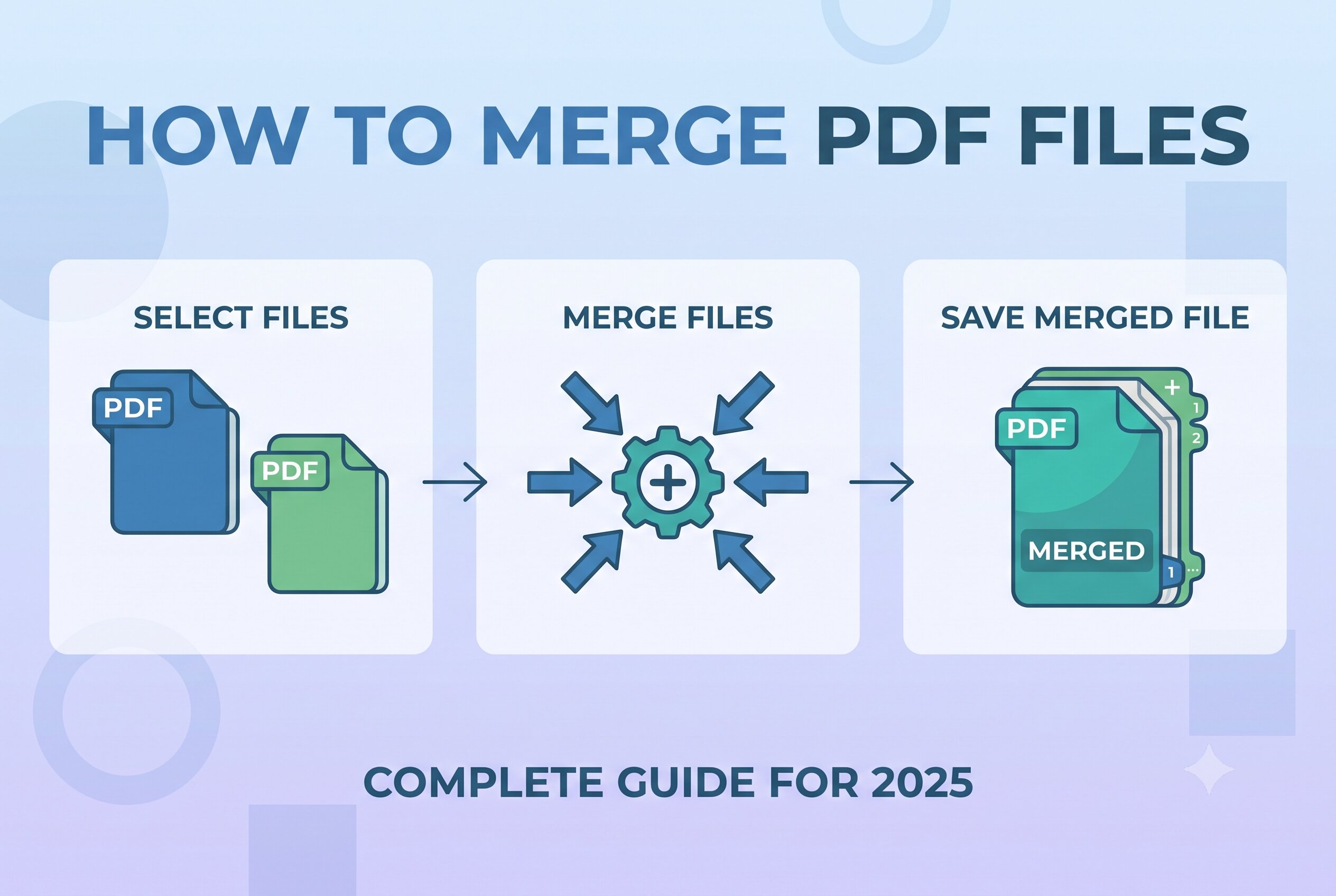
Merging PDF files is one of the most common PDF tasks. Whether you're combining multiple invoices, joining chapters of a book, or consolidating reports, this guide will show you the easiest and fastest ways to merge PDFs in 2025.
Table of Contents
What is PDF Merging?
PDF merging is the process of combining two or more PDF files into a single document. Instead of having multiple separate PDFs, you get one unified file that's easier to share, print, and organize.
For example, if you have three separate PDFs for chapters of a report, merging them creates one complete report document.
Quick Fact
Merging PDFs doesn't change the content of individual files—it simply combines them in the order you choose while preserving quality.
Why Merge PDFs?
There are many reasons why you might want to combine multiple PDF files:
- •📧 Easier email sharing — one attachment instead of many
- •📂 Better organization — related documents stay together
- •🖨️ Simpler printing — print everything at once
- •📱 Convenient reading — no need to switch between files
- •💼 Professional presentation — organized proposals and reports
- •📚 Document consolidation — combine chapters, sections, or parts
How to Merge PDFs (Step-by-Step)
Follow these simple steps to merge your PDF files using SpellPDF—100% free with no signup required.
Open the Merge PDF Tool
Go to our Merge PDF tool. The interface is clean and simple—no ads, no distractions.
Upload Your PDF Files
Click "Choose PDFs" or drag and drop your files into the upload area. You can select multiple files at once.
Arrange the Order
Drag and drop the PDFs to reorder them. The order in the list is the order they'll appear in your final PDF.
Click Merge
Once you're happy with the order, click the "Merge PDF" button. Your files are processed instantly in your browser.
Download Your File
The merged PDF downloads automatically. That's it! No watermarks, no limits, no signup.
🔒 Privacy First
All merging happens in your browser. Your PDF files are never uploaded to our servers—your data stays 100% private.
Best Practices for Merging PDFs
1. Name Your Files Clearly
Before merging, rename your files with clear, sequential names like "Chapter1.pdf", "Chapter2.pdf", etc. This makes it easier to arrange them in the correct order.
2. Check File Quality First
Open each PDF individually to ensure they're not corrupted and the content is what you expect. This saves time by catching issues before merging.
3. Consider File Size
Large merged PDFs can be slow to open and share. If your final file exceeds 25MB, consider compressing it afterward using our Compress PDF tool.
4. Preserve Bookmarks
If your original PDFs have bookmarks or table of contents, they'll be preserved in the merged file, making navigation easier.
💡 Pro Tip
You can merge unlimited PDF files at once. There's no limit on the number of files or total pages you can combine.
Common Issues & Solutions
Problem: Files won't upload
Make sure your files are actual PDFs (not PDFs saved as .doc or .jpg). Try refreshing the page and uploading again.
Problem: The merged file is too large
After merging, use our Compress PDF tool to reduce the file size by up to 80% without losing quality.
Problem: Password-protected PDFs won't merge
You'll need to unlock password-protected PDFs first using our Unlock PDF tool, then merge them.
Problem: Pages are in wrong order
Simply drag and drop the file tiles to rearrange them before clicking merge. The order shown is the final order.
Conclusion
Merging PDFs is a simple but powerful way to organize your documents. With SpellPDF, you can combine unlimited PDF files in seconds—for free, without signup, and with complete privacy.
Ready to give it a try? Our Merge PDF tool is waiting for you. No downloads, no accounts, just fast, secure PDF merging in your browser.
Frequently Asked Questions
Ready to Try It Yourself?
Put what you learned into action. Our tool is 100% free with no signup required.
Try the Tool Now