How to Compress PDF Files Without Losing Quality
Reduce PDF file size by up to 80% while maintaining readability. Discover the best compression techniques and when to use each level.
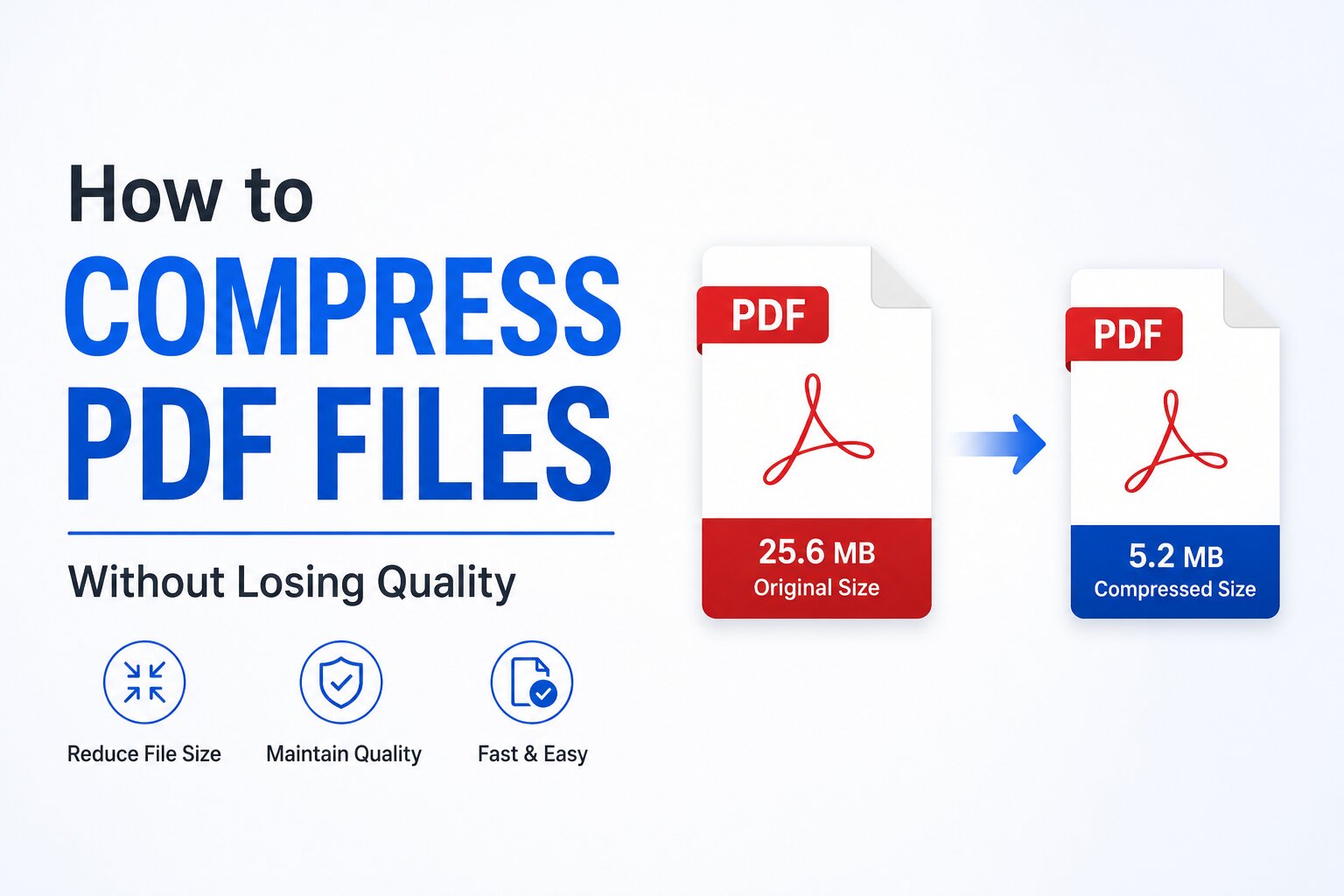
Large PDF files can be a hassle—slow to email, difficult to upload, and painful to share. This comprehensive guide shows you how to compress PDF files to reduce their size by up to 80% without sacrificing quality.
Table of Contents
Why Compress PDFs?
PDF compression reduces file size while maintaining document quality. Here are the main reasons to compress your PDFs:
- •📧 Email attachments — Most email services limit attachments to 25MB
- •⚡ Faster uploads — Smaller files upload quicker to any platform
- •💾 Save storage space — Free up valuable disk space
- •📱 Mobile-friendly — Easier to download and view on mobile devices
- •🌐 Better website performance — Faster page loads
- •☁️ Cloud storage savings — Store more files in the same space
How PDF Compression Works
PDF compression works by optimizing different elements within the document:
- •🖼️ Image optimization — Reducing image resolution and quality
- •📝 Font subsetting — Including only used characters
- •🗑️ Removing metadata — Stripping unnecessary information
- •📦 Better encoding — Using more efficient compression algorithms
Good to Know
Compression is most effective on PDFs with images. Text-only PDFs are already highly optimized.
How to Compress PDFs (Step-by-Step)
Open Compress PDF Tool
Navigate to our Compress PDF tool. The interface is straightforward with no complicated options.
Upload Your PDF
Drag and drop your PDF file or click "Choose PDF" to select it from your device.
Select Compression Level
Choose Low, Medium, or High compression based on your needs. See our compression level guide below.
Wait for Processing
The compression happens in seconds, right in your browser. No file uploads to worry about.
Download Compressed PDF
Your smaller PDF downloads automatically. Compare the before and after sizes to see the savings!
Choosing the Right Compression Level
Low Compression (Recommended for most)
Best for documents where quality matters. Reduces file size by 20-40% while maintaining excellent visual quality. Perfect for professional documents, contracts, and presentations.
Medium Compression
A balanced choice for everyday use. Reduces file size by 40-60% with a slight quality reduction that's usually unnoticeable. Great for email attachments and general sharing.
High Compression
Maximum size reduction of 60-80%. Some quality loss on images, but text remains crisp. Ideal for archiving or when file size is critical.
💡 Which Level Should You Choose?
Start with Medium compression for most cases. If quality is critical, use Low. If you need the smallest possible file, use High.
Tips for Best Results
- •📸 If your PDF has many photos, expect greater size reduction
- •📝 Text-heavy PDFs will compress less because text is already efficient
- •🎨 Vector graphics (drawings) compress well without quality loss
- •📊 Try different compression levels to find your best balance
- •💾 Always keep your original PDF as backup
- •⚡ Compression is instant—experiment freely!
Conclusion
PDF compression is essential for anyone who works with digital documents. Whether you're emailing invoices, uploading reports, or archiving files, compression saves time and storage space.
Try our free Compress PDF tool now—process files instantly with complete privacy. No uploads to servers, no signup required, just fast compression right in your browser.
Frequently Asked Questions
Ready to Try It Yourself?
Put what you learned into action. Our tool is 100% free with no signup required.
Try the Tool Now